Most of us, professionals or not, know Photoshop, that enormously powerful image editing program Adobe has on the market.
Some of you may also know what its licence costs; the more piratical among us, not so much.
But I haven’t come to talk about the same old Photoshop: I’m bringing you a resource that could prove very useful.
As a photographer I know perfectly well that having good photography kit is expensive, a big investment you’re not always sure of recouping.
And as a creative and graphic designer I also know we might not need Photoshop for a given project, especially if you’re starting out and want to test the water.
That’s why I’m bringing you a solution that sits halfway to Photoshop: GIMP.
What is GIMP?
GIMP, an acronym of GNU Image Manipulation Program.
GIMP is an image editing program, a genuine alternative to Photoshop and, above all, a free one.
It’s free software, so users can modify the program and add functionality.
It’s available on Windows, macOS and Linux, and lets you retouch your images to taste with a range of high quality tools built into the program.
The program is available in several languages, among them: Spanish, English, Catalan, Galician, Basque, German, French, Italian, Russian, Swedish, Norwegian, Korean and Dutch.
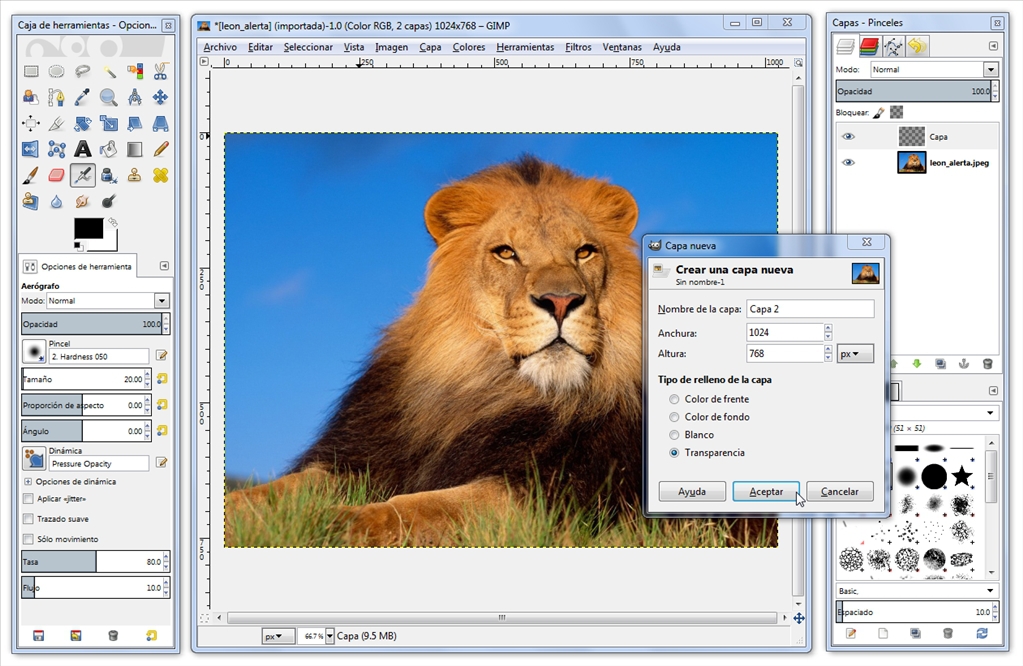
The project was started in 1995 by students Spencer Kimball and Peter Mattis as a semester exercise at the University of Berkeley, in the students’ computing club. Today a team of volunteers handles the program’s development.
With GIMP you can work with most graphics file formats: JPG, GIF, PNG, PCX, TIFF, along with Photoshop’s PSD files and an open format, XCF. You’ll also be able to import and export PDFs and PostScript (ps). And, as if that weren’t enough, import SVG vector images.
What tools will you find?
- Selection tools (rectangular, elliptical, free hand lasso, magic wand, by colour, inversion, intersection, addition, subtraction).
- Intelligent scissors.
- Painting tools such as pencil, brush, airbrush, fill, textures, gradients and so on.
- An extensible set of brushes to use with the tools above.
- Tools for scaling, shearing, warping, flat cloning, perspective cloning and a healing brush (to correct small blemishes).
- A tool for creating and manipulating text.
- Creating and editing colour gradients.
- It also has plenty of tools or filters for manipulating colour and the look of images, such as sharpening and blurring, removing or adding speckles, shadows, colour mapping and so on.
- It also has a menu with a catalogue of effects and image treatments.
- Wizards for quickly creating buttons, logos and other simple images from preset elements.
- Creating, editing and manipulating layer specific masks.
- Creating, editing and manipulating paths.
- Simple measurement and calculation of lengths and angles.
- A menu to undo every change made in a session (except those that are irreversible), to correct mistakes or run tests.
Another feature I value highly as a photographer is a program’s ability to automate processes, and GIMP has that option: we can automate processes and scripts.
Plugins and extensions
GIMP has an extensive catalogue of plugins created by users who know what the software needs.